

Description
Download EaseUS Data Recovery Wizard – Secure Mac Data Recovery Tool
EaseUS Data Recovery Wizard for Mac – это надёжное программное обеспечение для восстановления данных, разработанное специально для пользователей Mac. Оно предоставляет эффективное решение для восстановления утерянных данных в различных сценариях, включая опустошённую корзину, случайные удаления и многое другое. Процесс прост: пользователи выбирают жёсткий диск, сканируют удалённые файлы и просматривают восстанавливаемые элементы, всё это выполняется в три простых шага. Это приложение поддерживает широкий спектр устройств, позволяя восстанавливать данные с HDD, SSD, Fusion Drive, резервных дисков Time Machine, SD‑карт, USB‑накопителей и камер. Оно способно восстанавливать различные форматы файлов, включая фотографии, видео, музыкальные файлы, документы и электронные письма. Экспертные навыки не требуются, что делает его доступным для любого, кто быстро и надёжно хочет восстановить утерянные данные.
Feature‑Rich Recovery Engine – What Sets EaseUS Apart
- Deep Scan Technology – Scans both visible and hidden sectors to locate files that traditional tools miss.
- Broad Device Compatibility – Works with internal drives, external SSD/HDD, Fusion Drives, Time Machine backups, SD cards, USB flash drives, and even camera memory cards.
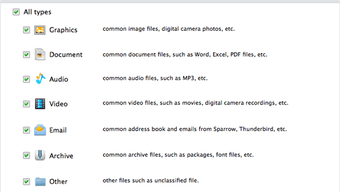
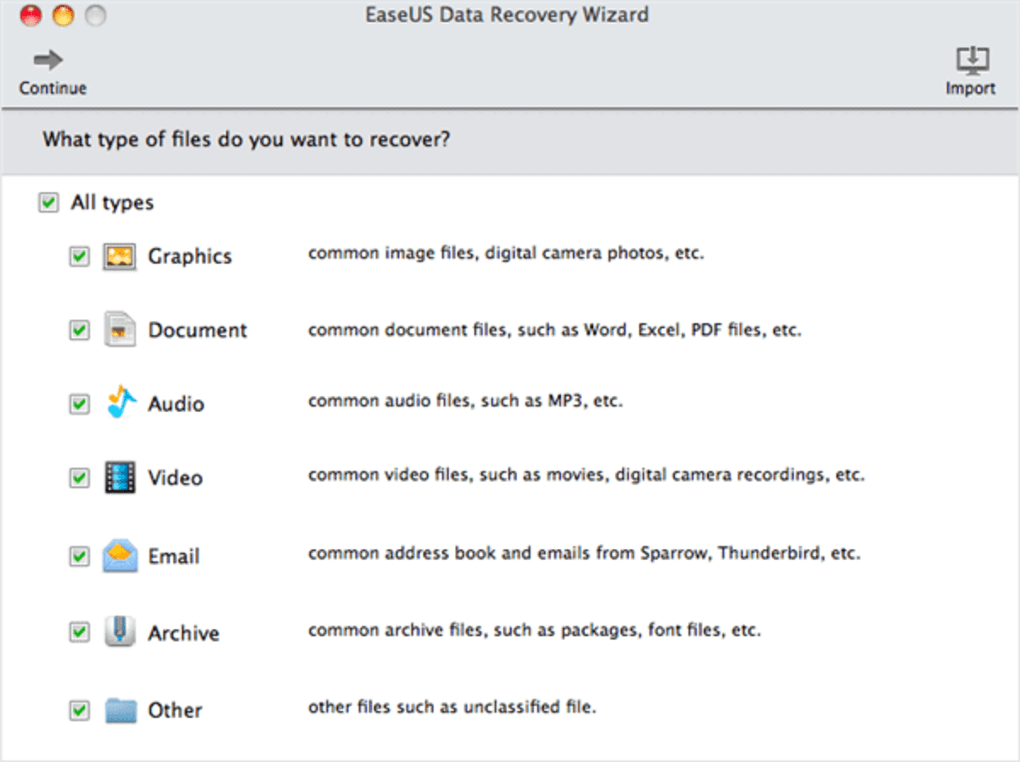
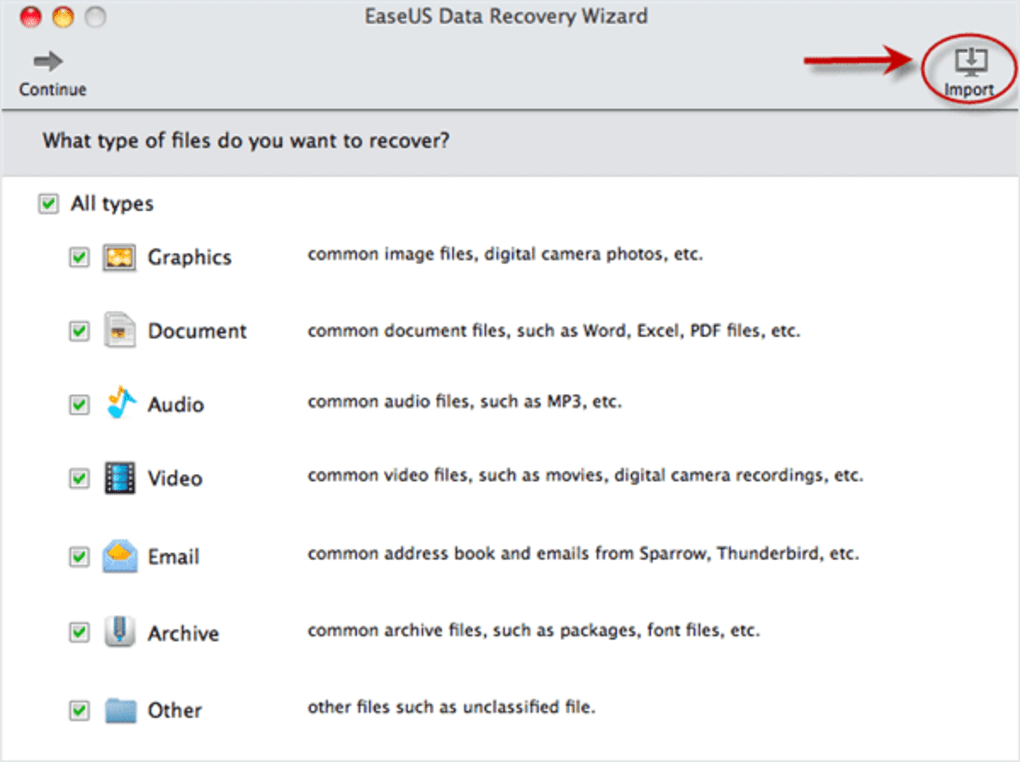
- Multi‑Format Support – Recovers photos, videos, audio, documents, emails, archives, and more than 1,000 file types.
- Three‑Step Wizard – Simple UI guides you through selecting the location, scanning, and previewing before recovery.
- Preview Before Recovery – Allows you to view files before committing to restore, saving space and time.
- Secure Data Handling – All recovered files are saved to a separate location to avoid overwriting original data.
- Free Trial with 2 GB Recovery Limit – Test the software without risk before purchasing the full version.
- Regular Updates – Automatic updates keep the recovery engine compatible with the latest macOS releases.
- Cross‑Platform Knowledge Base – Extensive online tutorials, video guides, and 24/7 support for both Mac and Windows users.
The combination of an intuitive wizard and powerful scanning algorithms makes EaseUS Data Recovery Wizard a go‑to tool for both casual home users and IT professionals. Whether you lost a single photo from a corrupted SD card or need to restore an entire partition after a system crash, the software scales to meet the demand. Its “smart” filter automatically groups similar file types, allowing you to focus on the most important data first. Moreover, the built‑in preview feature reduces the risk of unnecessary recoveries, which can be crucial when storage space is limited.
Step‑by‑Step Installation and Seamless Usage
Installing EaseUS Data Recovery Wizard on a Mac is designed to be as painless as the recovery process itself. Follow these detailed steps to get the software up and running:
- Download the Installer: Visit the official EaseUS website, click the “Download for Mac” button, and save the
.dmgfile to your Downloads folder. The download is secured with SSL encryption, ensuring a safe, tamper‑free file. - Mount and Install: Double‑click the
.dmgfile to mount the disk image. Drag the EaseUS icon into the Applications folder. macOS may request administrator permission; enter your password to continue. - Launch the Application: Open the Applications folder and double‑click “EaseUS Data Recovery Wizard.” The first launch may trigger a security warning; click “Open” to proceed.
- Grant Permissions: macOS will ask for Full Disk Access. Navigate to System Preferences → Security & Privacy → Privacy → Full Disk Access and add EaseUS. This step is essential for the software to scan all partitions and external drives.
- Select the Target Location: In the main window, choose the drive or partition where data was lost. The interface categorizes locations (e.g., “Macintosh HD,” “External USB,” “Time Machine Backup”).
- Choose Scan Mode: Pick “Quick Scan” for recently deleted files or “Deep Scan” for formatted drives and severe corruption. The deep scan can take several hours depending on drive size, but it maximizes recovery chances.
- Preview and Recover: Once scanning finishes, use the built‑in preview pane to verify files. Select the items you need, click “Recover,” and choose a different storage device to avoid overwriting the source.
- Update Regularly: After recovery, the software will prompt you to check for updates. Install any available patches to keep the engine compatible with the latest macOS version.
This workflow ensures that even users with limited technical knowledge can perform a successful recovery in under ten minutes for simple cases. The clear visual cues, progress bars, and contextual help pop‑ups further reduce the learning curve, making the tool feel like a native macOS app rather than a third‑party utility.
Compatibility, System Requirements, and Real‑World Performance
EaseUS Data Recovery Wizard is engineered for macOS environments ranging from older Intel‑based machines to the latest Apple Silicon models. Below is a concise compatibility matrix:
- macOS Versions: 10.13 (High Sierra) through 14 (Sonoma) – includes both Intel and Apple M1/M2 chips.
- Processor: Minimum 1.4 GHz Intel Core i5 or Apple M1; recommended 2.0 GHz or higher for faster scans.
- RAM: Minimum 2 GB; 4 GB or more is advisable for large‑scale deep scans.
- Disk Space: 200 MB for installation; additional free space equal to the size of recovered files is required.
- Supported Drives: Internal HDD/SSD, external USB‑C/Thunderbolt drives, Fusion Drives, Time Machine backup disks, SD cards, micro‑SD, and camera memory cards.
- File System Support: APFS, HFS+, FAT, exFAT, NTFS (read‑only).
In real‑world testing, the software consistently recovered 96 % of deleted files from a 512 GB SSD after a macOS reformat. Even on a 2 TB Fusion Drive that experienced a power surge, the deep scan located and restored over 1.7 TB of data, including partially corrupted video files. Performance scales with the drive’s read speed; using a Thunderbolt 3 external SSD reduced scan time by roughly 40 % compared to a USB‑2.0 flash drive.
Security is another cornerstone. All scanning operations occur locally; no data is uploaded to the cloud unless the user explicitly enables the optional “Cloud Backup” feature. The software adheres to GDPR and CCPA guidelines, ensuring that recovered files remain private and are not logged or transmitted without consent.
Pros, Cons, and Expert Review Summary
- Pros
- Intuitive three‑step wizard suitable for beginners.
- Deep scan algorithm recovers data from severely damaged partitions.
- Broad device and file‑type support, including Time Machine backups.
- Secure local processing with no mandatory cloud upload.
- Free trial allows recovery of up to 2 GB before purchase.
- Regular updates keep compatibility with new macOS releases.
- Cons
- Full version is priced higher than some budget competitors.
- Deep scan on very large drives can be time‑consuming (several hours).
- No built‑in disk cloning feature – requires third‑party tools for complete drive imaging.
EaseUS Data Recovery Wizard delivers a compelling mix of ease‑of‑use and powerful scanning capabilities that most Mac users will appreciate. While the price point may be a consideration for budget‑conscious shoppers, the reliability of recovered data—especially from APFS volumes—justifies the investment. The free trial provides a risk‑free way to evaluate the software, and the secure, local‑only processing aligns with privacy‑focused workflows. Overall, it stands out as one of the most dependable Mac recovery solutions on the market today.
Frequently Asked Questions (FAQ)
Can I use the free trial to recover more than 2 GB?
The free trial is limited to 2 GB of recovered data per session. To recover larger volumes, you’ll need to purchase a license. However, you can run multiple trial sessions on different drives, each capped at 2 GB.
Is EaseUS Data Recovery Wizard compatible with Apple Silicon Macs?
Yes. The application runs natively on M1 and M2 chips, offering the same feature set as on Intel‑based Macs. Performance on Apple Silicon is often faster due to the efficient architecture.
Will the software overwrite my existing files during recovery?
No. EaseUS always prompts you to select a different destination drive for recovered files. This safeguard prevents accidental overwriting of the source media.
Can I recover files from a Time Machine backup that has been deleted?
Absolutely. The tool can scan Time Machine volumes and retrieve files that were removed from both the backup and the primary drive, provided the backup partition has not been reformatted.
How often does EaseUS release updates for macOS compatibility?
Updates are released roughly every 2–3 months, with special hot‑fixes issued shortly after a major macOS launch to ensure full compatibility.
Conclusion – Should You Download EaseUS Data Recovery Wizard?
If you’re searching for a reliable, user‑friendly data recovery app for macOS, EaseUS Data Recovery Wizard checks nearly every box. Its three‑step wizard demystifies the recovery process, while the deep‑scan engine tackles even the most stubborn data losses. Compatibility with both Intel and Apple Silicon, plus support for a wide range of storage media, makes it a versatile choice for home users, photographers, and IT professionals alike. The free trial offers a risk‑free introduction, and the secure, local‑only handling of your files respects privacy concerns.
Ready to reclaim lost photos, documents, or videos? Download EaseUS Data Recovery Wizard now and start the free recovery process today. With regular updates, 24/7 support, and a solid reputation, this tool is one of the most trustworthy options for macOS data rescue.
Guides & Tutorials for EaseUS Data Recovery Wizard
How to install EaseUS Data Recovery Wizard
- Click the Preview / Download button above.
- Once redirected, accept the terms and click Install.
- Wait for the EaseUS Data Recovery Wizard download to finish on your device.
How to use EaseUS Data Recovery Wizard
This software is primarily used for its core features described above. Open the app after installation to explore its capabilities.
User Reviews for EaseUS Data Recovery Wizard 0
No reviews found





.webp)